CRATOROMR Solution
How CRATOR works.
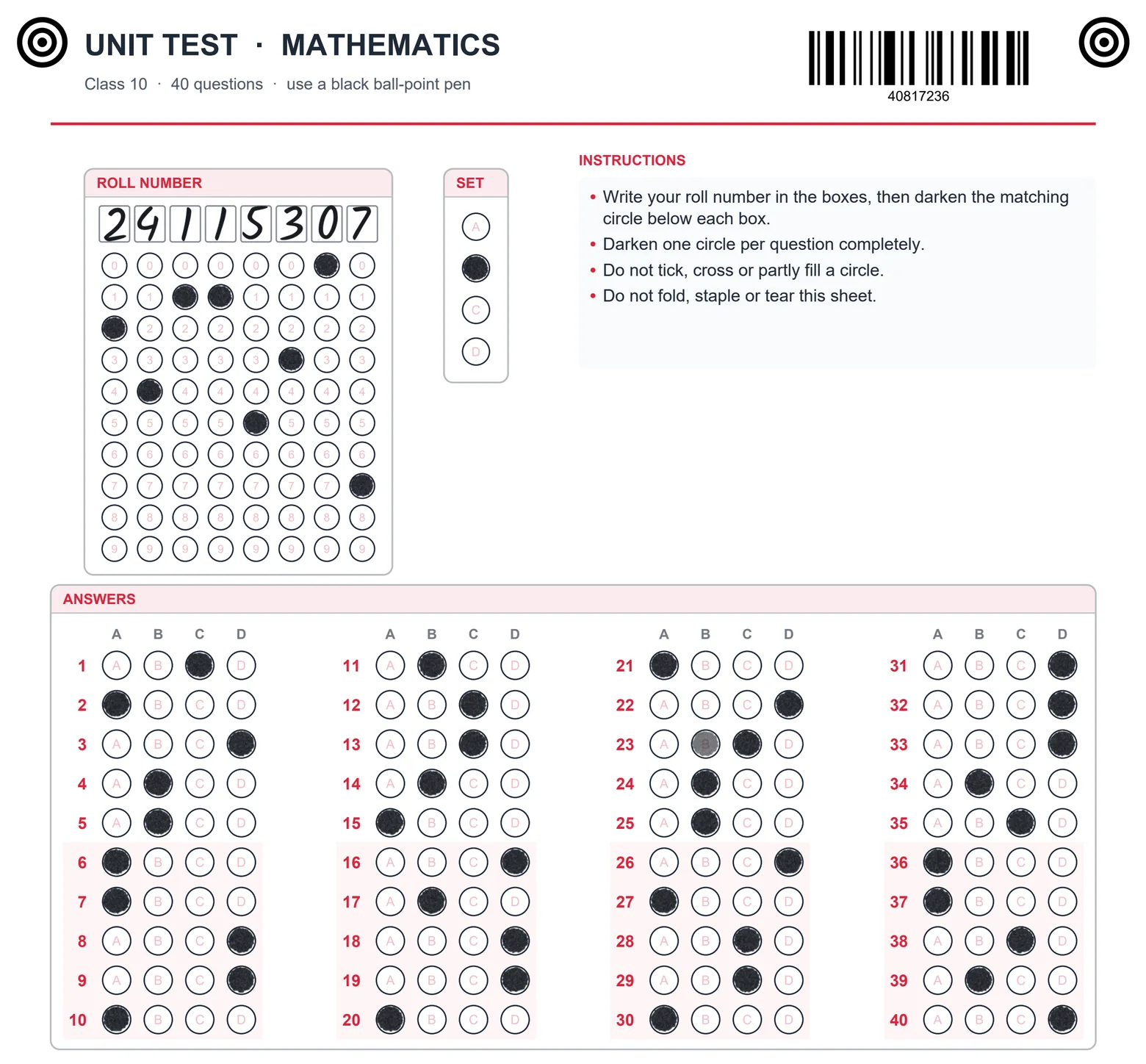
Five steps from a folder of scans to results you can hand out. These are real screens from the app, with made-up demo data.
-
1
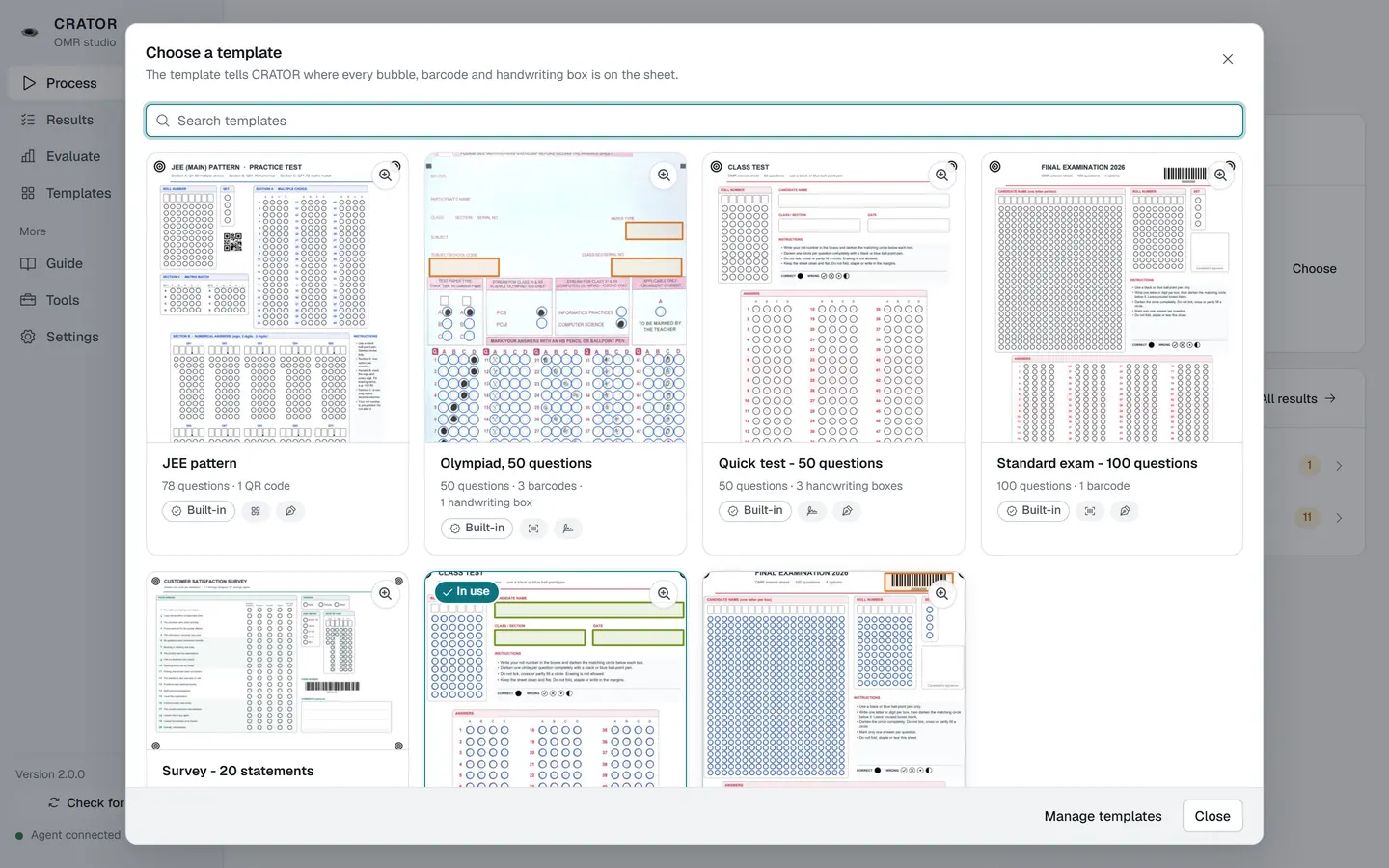
Pick your sheet
Choose the template for the sheet you printed, or design your own in the same app.
-
2
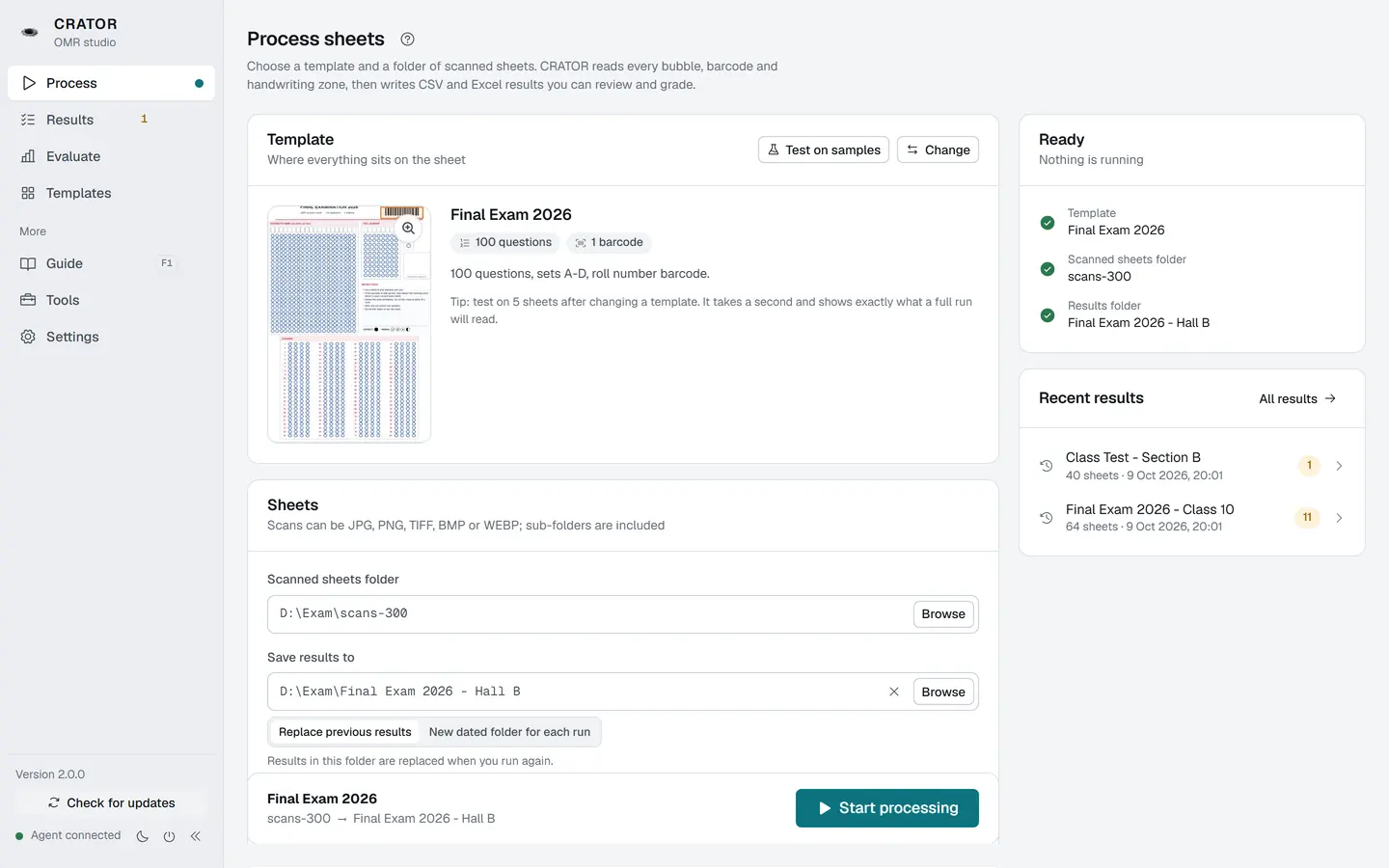
Point to your scans
Select the folder your scanner saved to. CRATOR finds every sheet inside it.
-
3
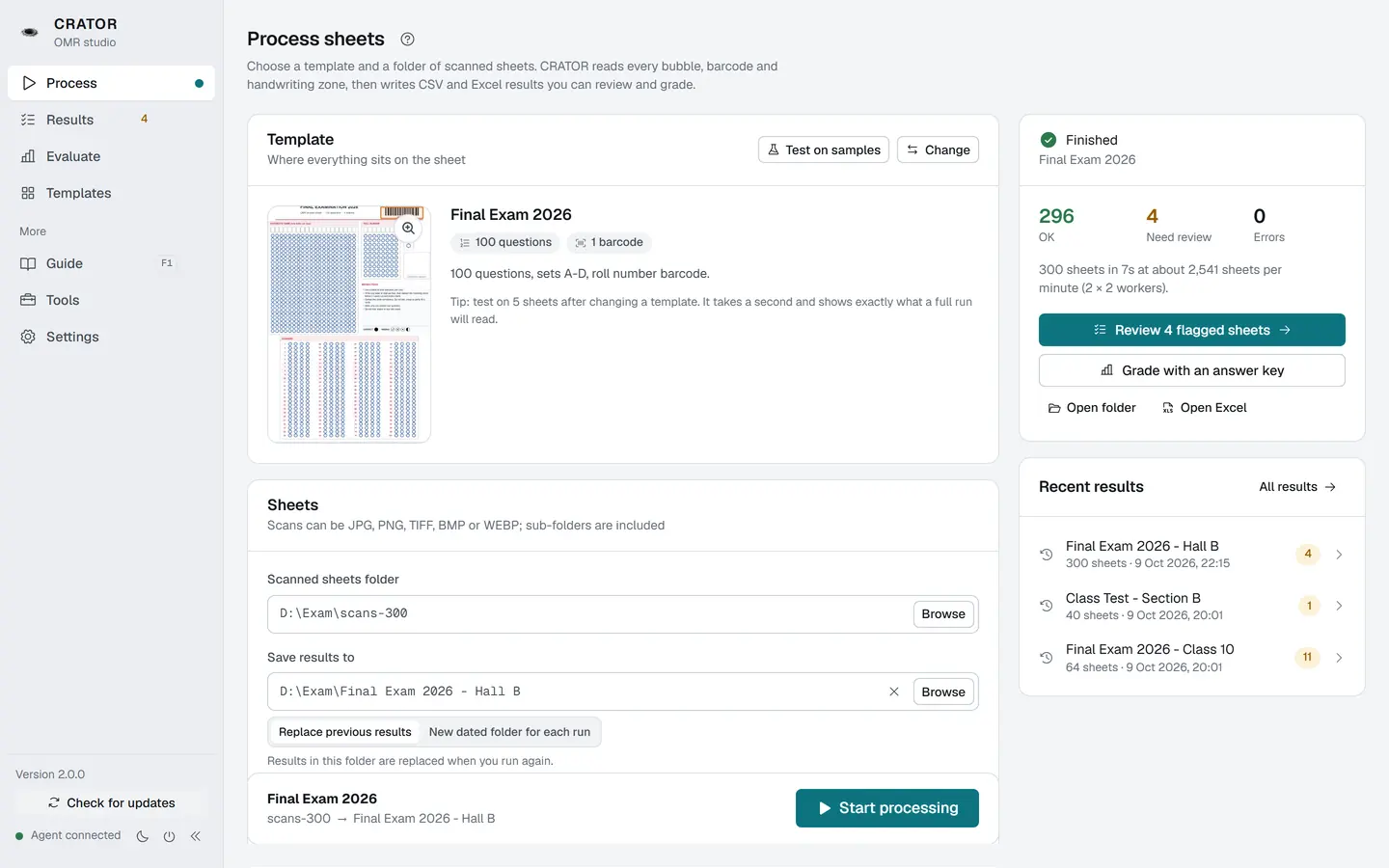
Let it read
It reads bubbles and barcodes, and its AI reads handwritten numbers, on your computer. Check the flags before you share your results.
-
4
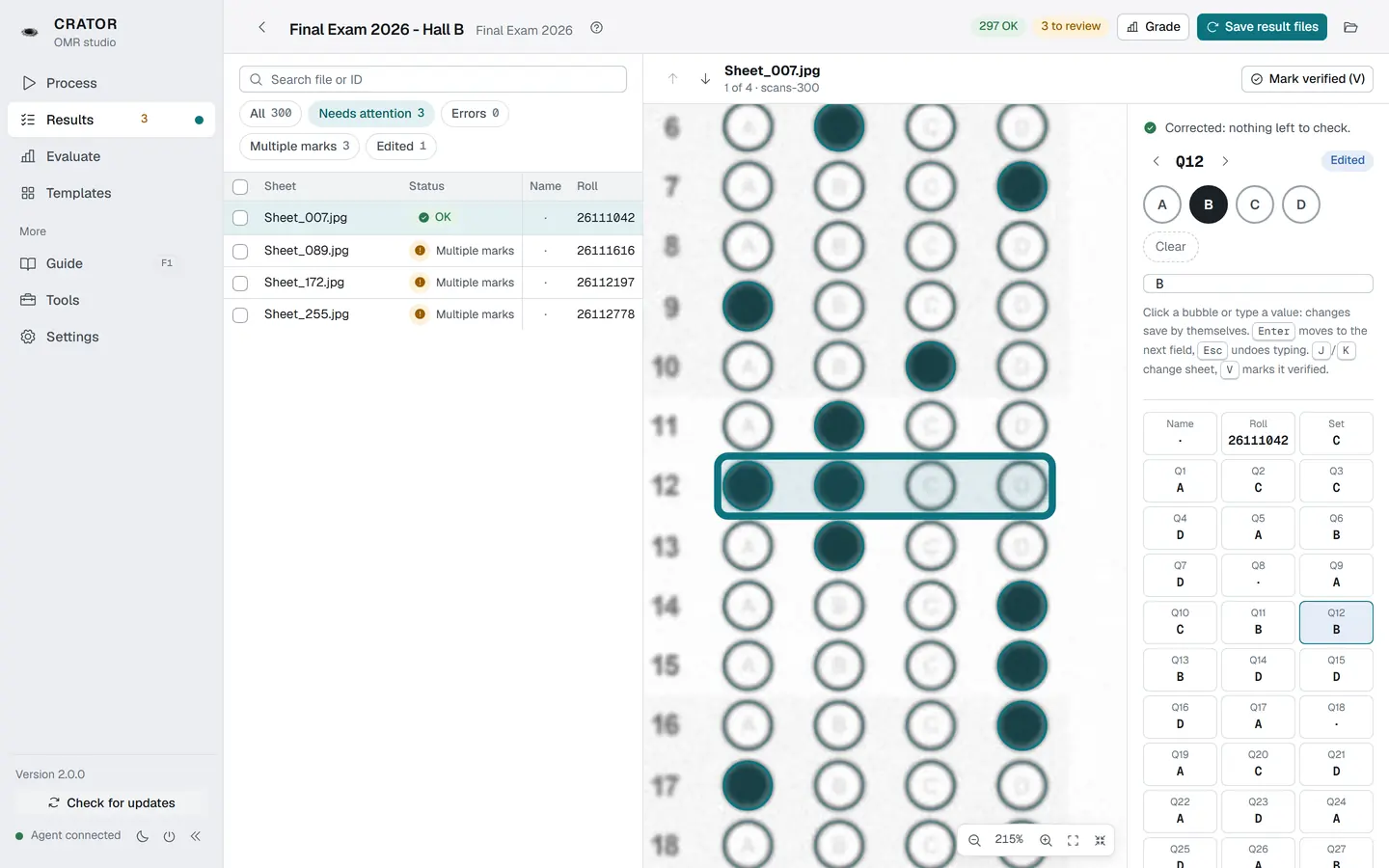
Check what it flags
Erased, double or unclear marks are flagged. Look at the scan, keep the right answer, done.
-
5
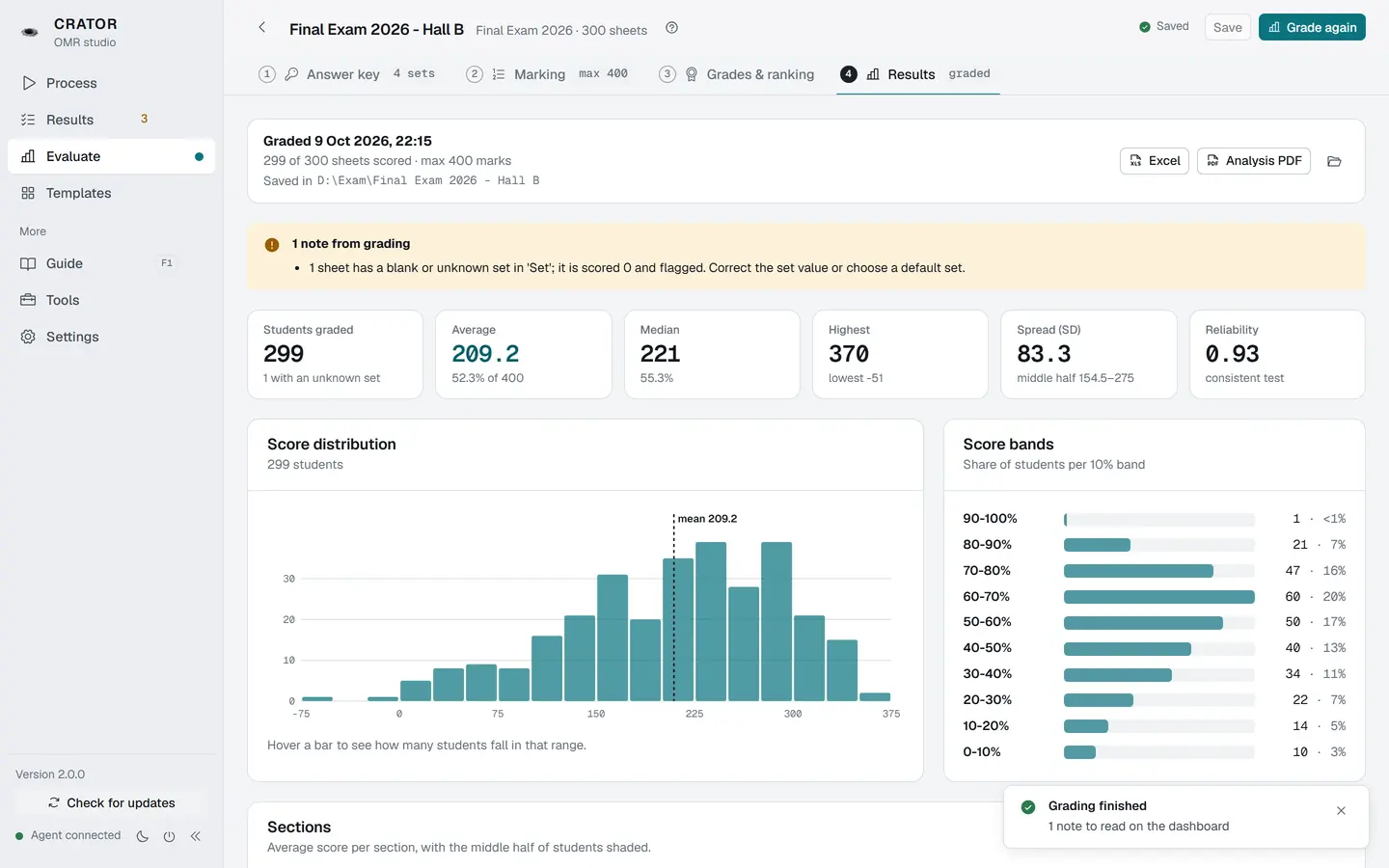
Share the results
Add the answer key once. Marks, ranks and report cards follow in Excel and PDF.
What you need
- A Windows PCWindows 10 or 11, 64-bit.
- A scannerAny scanner that saves clear JPG, PNG, TIFF, BMP or WebP images with the corner markers visible.
- A printerSheets print on plain paper at the correct scale.
- Activate onceAfter purchase, activate once. Then use CRATOR offline forever. The demo needs internet for each batch.
Try it on your next test.
Start with one class and a small batch. You will know within minutes.
10,000 scans or 7 days, whichever comes first. Internet is needed at activation and each batch.